

If you want the fastest way to make a short on Trending.com, start with one-click create. It is the easiest path for beginners because you do not have to learn a traditional editor, build every step by hand, or decide a hundred things before you even get your first draft.
The simple version is exactly what most new users want: sign in, choose a video type, and click create. That is enough to get your first video moving. Everything else is optional.
The fastest way to make your first video
One-click create lives in dashboard Simple mode. After you log in, you will see the Simple and Custom toggle at the top. If you just want the fastest start, stay in Simple.
From there, pick the kind of video you want to make. Then use the create card for that format. You can do your first run in three short steps:
- Log in to your dashboard.
- Choose Simple, then pick a video type.
- Click Create now.
That is the core one-click flow. After you start it, Trending sends you to My Library so you can watch progress without staying on the create page.

Why this is the easiest place to start
One-click is built for people who want a finished short, not a complicated editing session. If you know the result you want but do not want to manage every production step, this is the right entry point.
- You do not need After Effects or another traditional editor.
- You do not need to set every step manually before starting.
- You can still come back later and adjust things if you want more control.
- You can start with a draft first instead of committing to a full render immediately.
Optional settings only matter if you want a little more control
This part is important: the settings are optional. They are there for people who want to steer the result a little, not for people who want more work.
On the create card, click Settings if you want to guide the video slightly before it starts. If you would rather keep it simple, skip that button and just use Create now.
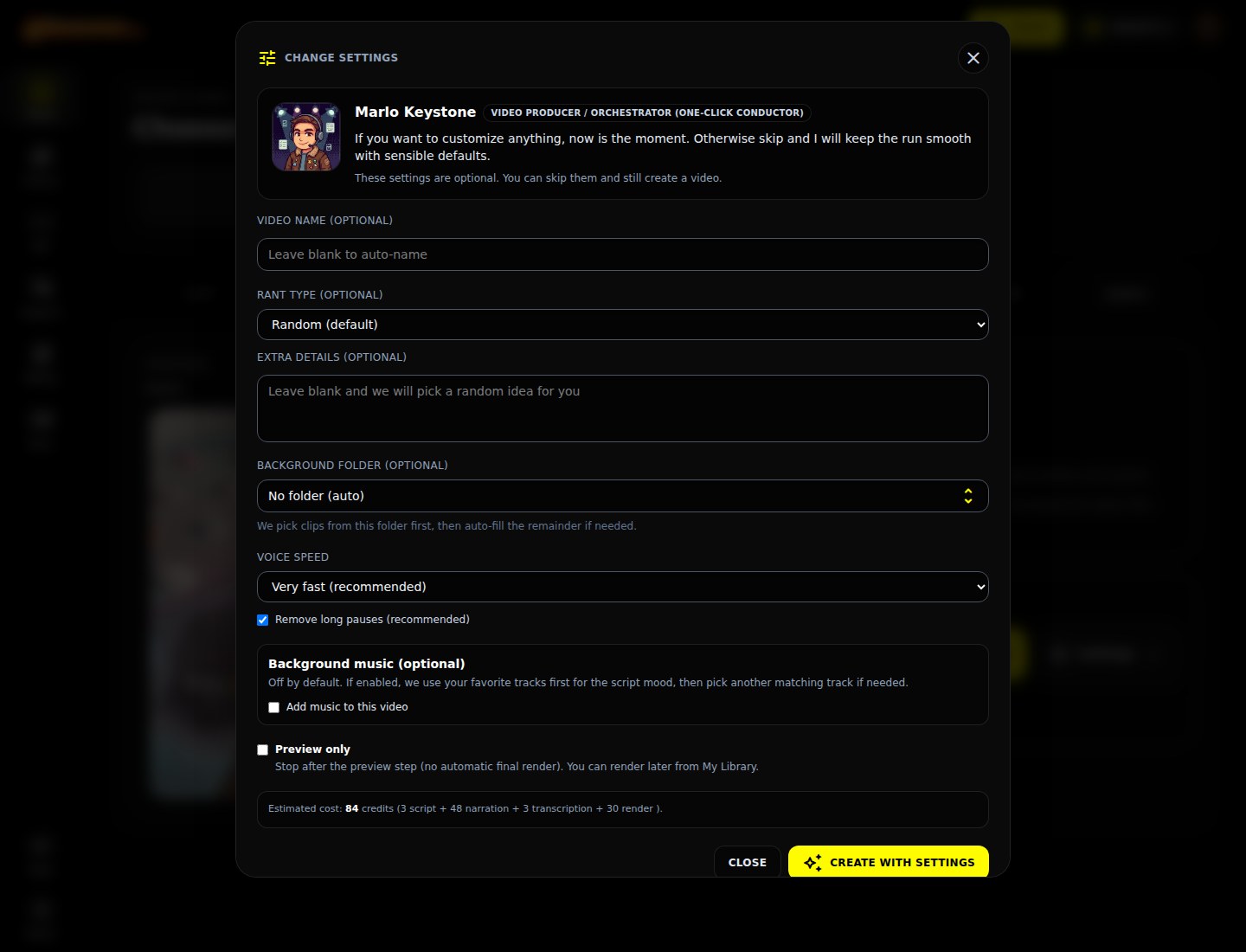
The exact fields change a little depending on the video type, but they all follow the same idea: small controls for people who want a bit more direction without moving into the full custom editor.
- Video name: helpful if you want a custom label in My Library.
- Topic or type: useful if you want to nudge the direction instead of leaving it random.
- Extra details: good for a short note, idea, or angle.
- Background folder: helpful if you already uploaded clips and want Trending to use those first.
- Preview only: useful when you want to review a draft before doing the final render.
- Voice, music, or speed options: available on some formats when they make sense for that style.
What happens after you click create
After one-click starts, Trending handles the background work for you. That usually includes the script, narration, captions, supporting visuals, and the steps needed to get the video ready for preview or final render.
You can keep an eye on the progress from My Library and from dashboard alerts. That means you do not have to stay on the create page or keep refreshing blindly.
When to use something other than one-click
One-click is the easiest path, but it is not your only path. If you later want more control, Trending already gives you other ways to work.
- Custom mode: better if you want to go step by step and steer each part yourself.
- API: better if you are building your own app or automation.
- AI assistant tools: better if you want an agent to create videos for you in chat.
The good part is that you do not need to start there. For most new users, one-click is still the smartest first move because it helps you get a result quickly before you decide how much control you actually need.
The best beginner move
If you are brand new, do not overthink the first video. Log in, stay in Simple, pick a format, and click Create now. Then use settings only when you feel like nudging the result a little.
That is the fastest way to learn what Trending can do without turning your first session into a full production project.